
Custom Dialogs for MS Access: eMsgBox, eInputBox & eComboBox
No more boring standard dialogs: three tailor-made dialogs that replace MsgBox and InputBox with a modern, flexible and user-friendly alternative – with HTML body, templates and IntelliSense.
Anyone who works with Access knows them all too well: MsgBox and InputBox. Functional? Yes. Modern, appealing or user-friendly? Unfortunately not. Most people just click “OK” without even reading the message. Time to change that.
In this project I show you three tailor-made dialogs that give Access a real boost of freshness – because modern users expect more.
Why your own dialogs?
The standard dialogs cannot do many things. My custom dialogs can:
- display tables
- integrate images
- colored, formatted text
- embed web pages
- use your own icons
- print dialogs
- select data from a list
- close automatically
The three stars of the show
- eMsgBox – the modern replacement for MsgBox
- eInputBox – user-friendly input at last
- eComboBox – the extra that Access has been missing until now
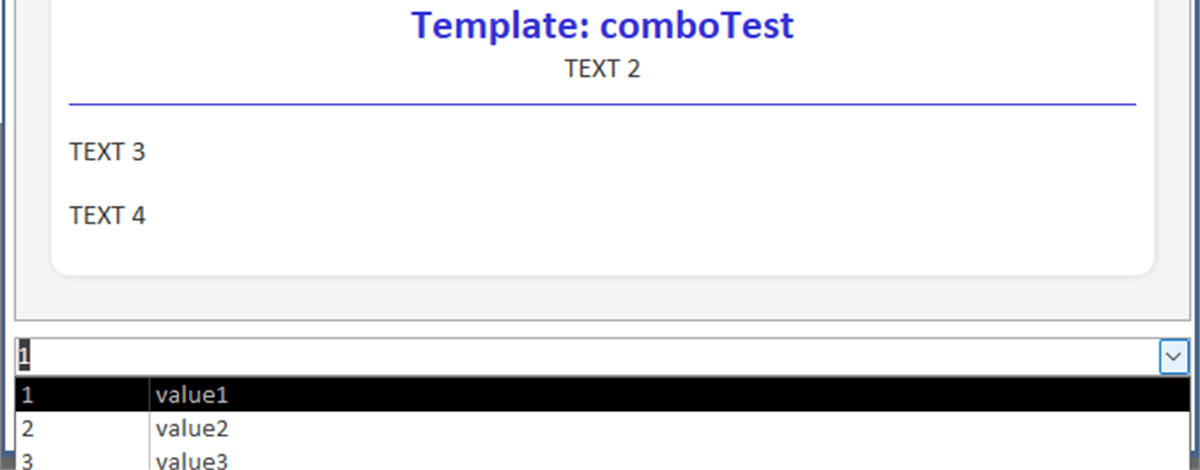
The eComboBox is particularly exciting: a kind of InputBox – but with a ComboBox. The values can be passed via a value list or an SQL statement. Super flexible.
Nice to know: The custom notifications from the last article integrate seamlessly – giving you a consistent, modern UI concept from the small notification to the interactive dialog.
Highlights at a glance
- Web browser control as body: HTML in the dialog box – sounds complex, but it isn’t. Even basic knowledge is enough; plain text works too.
- Many customization options: up to 6 buttons, adjustable size, automatic hide after X seconds, printing, easy adding/customizing of dialog types.
- Templates instead of endless code: the HTML designs are stored as templates in a table – with placeholders replaced by content at runtime.
- IntelliSense included: all dialogs can be called conveniently via IntelliSense – no constant searching for options.
Adapting dialog types
The dialog types are stored as an enumeration in modDLG_Dialogs and in the table tblDLG_Dialogs. Colors and icon can be adjusted in the table.
Create a new dialog type: simply add another entry to tblDLG_Dialogs and enter the name as an enumeration – done.
Examples
MessageBox
Call as a command:
myMsgBox "Header", "This is the body text", dlgType_Info, "OK", "Cancel"Call as an object with all options:
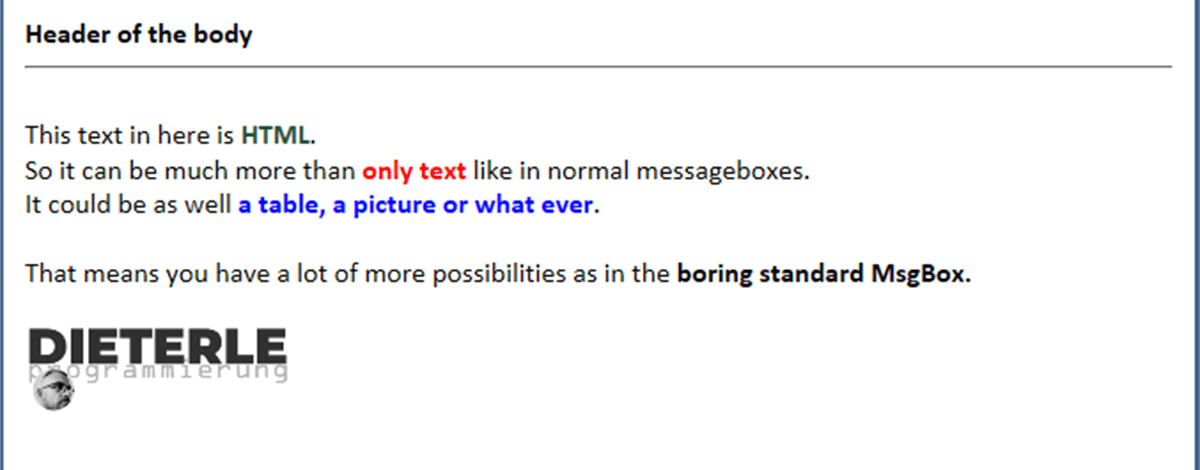
msgBody = "textHead(Header of the body)" & _
          "This text in here is HTML. " & _
          "So it can be much more than only text – " & _
          "a table, a picture or whatever." & _
          "<a href='https://www.example.com' target='_blank'>" & _
          "<img src='https://www.dieterle-programmierung.de/img/logo.png' width='150'></a>"

With msgDialog
    .msgBoxTyp      = eMsgBox
    .msgArt         = dlgType_Info
    .msgHeader      = "INFORMATION"
    .msgBody        = msgBody
    .msgButton1     = "OK"
    .msgButton2     = "Cancel"
    .msgButton3     = "Another button"   ' up to 6 buttons possible
    .msgButtonPrint = True
    .msgSecToClose  = 20
    .msgBodyHeight  = 4000
    .msgBodyWidth   = 10000
    .startMyBox
    msgButtonClicked = .msgButtonClicked
End With
Call as a template:
With msgDialog
    .msgBoxTyp      = eMsgBoxTemplate
    .msgTemplate    = "PDFsavedSuccesfull"
    .msgTemplDummy1 = "Your report was saved as PDF successfully"
    .msgTemplDummy2 = "sFilePath"
    .startMyBox
End With
InputBox
Call as a command:
var = myInputBox("QUESTION", "Please enter a value.", dlgType_Question, "Default value", "OK")Call as an object with all options:
msgBody = "textHead(Header of the body)" & _
          "This text in here is HTML."

With msgDialog
    .msgBoxTyp       = eInputBox
    .msgArt          = dlgType_Question
    .msgHeader       = "QUESTION"
    .msgBody         = msgBody
    .msgButton1      = "OK"
    .msgButton2      = "Cancel"           ' up to 3 buttons possible
    .msgDefaultValue = "hello world"
    .startMyBox
    msgButtonClicked = .msgButtonClicked
    msgValue         = .msgReturnValue
End With
The template call works just like the MessageBox.
ComboBox
Call as an object with all options:
msgBody = "textHead(Header of the body)" & _
          "This text in here is HTML."

With msgDialog
    .msgBoxTyp    = eComboBox
    .msgArt       = dlgType_Question
    .msgHeader    = "QUESTION"
    .msgBody      = msgBody
    .msgButton1   = "OK"
    .msgButton2   = "Cancel"
    .msgComboValue = "1;2;3;4"
    ' OR via SQL:
    .msgComboValue = "SELECT dlg_name, dlg_colorBackground FROM tblDLG_Dialogs ORDER BY dlg_name"
    .msgComboColumns = "5cm;0cm"
    .startMyBox
    msgButtonClicked = .msgButtonClicked
    msgValue         = .msgReturnValue
End With
Command and template calls work just like the InputBox and MessageBox.
And now it’s your turn
Let’s take Access to the next level together. Standard was yesterday. This small extension makes your Access interface more intuitive – and a whole lot “sexier”. You’ll find the detailed description and all notes directly in the code, well documented as usual.
Download
Three custom dialogs for MS Access (eMsgBox, eInputBox, eComboBox) – with HTML body, templates, up to 6 buttons and IntelliSense.