

Custom Help Form for MS Access – One Central In-App Help
A customer calls because they got stuck in your application – even though the answer was right there in the help. A well thought-out in-app help manages PDFs, web links, videos and rich text centrally in one table and is instantly available with a single command.
Have you ever experienced this? A customer calls because they got stuck in an application – even though the answer would have been right there in the help. This is exactly where a well thought-out in-app help comes into play: with just a few clicks, a help form in MS Access that is both effective and super easy to manage.
Why help is really important
When a user has a problem – entering data or finding a function – immediately available help can make the difference between success and giving up in frustration. Well-placed help solves many support queries in the blink of an eye.
An intuitive interface avoids many problems in the first place. But if a user still gets stuck, the secret of good help is immediate availability: no long searches in documents or PDFs – it has to be right there.
All help types in one place
A small survey showed that most people use PDF documents, video tutorials, online help texts and integrated help forms. So why not combine all options?
That is exactly what this solution does: you manage PDFs, web links, videos and rich-text help texts in one central location – all in a single table, reachable with just one click.
How does it work?
The help table tblDLG_Help
| Field | Meaning |
|---|---|
help_sort | Determines the order of topics in the list box. |
help_topic | The name the help is later called by. |
help_header | The heading of the help topic – for a clear overview. |
help_listbox | The name shown in the list box. |
help_text | The help text in rich-text format – incl. formatting. |
help_file | Attachment field for PDFs and other file attachments. |
help_url | A URL to external web pages, videos or documents. |
The help form frmDLG_Help
| Element | Meaning |
|---|---|
lboTopics | The user selects the help topic (each record = one topic). |
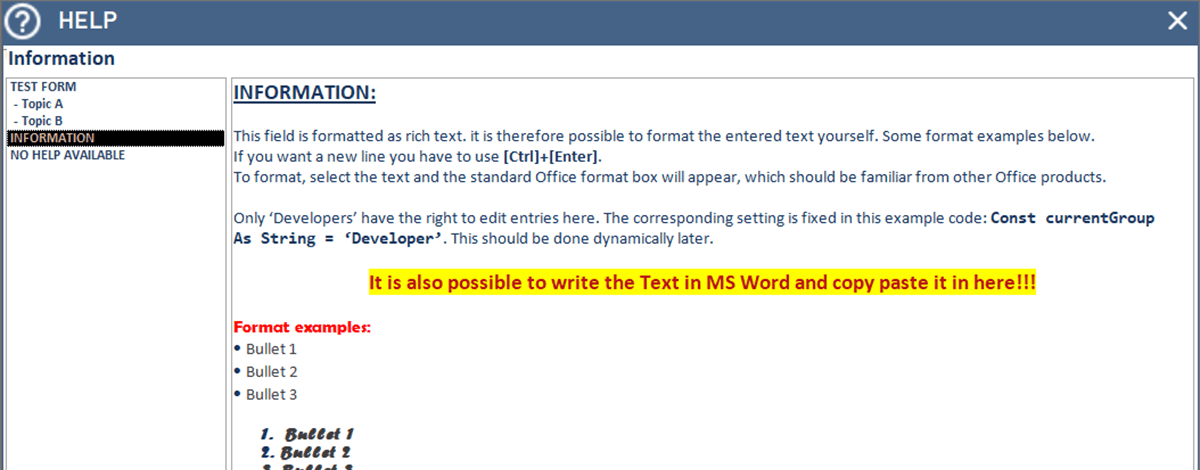
help_text | Displays the help text in rich-text format. |
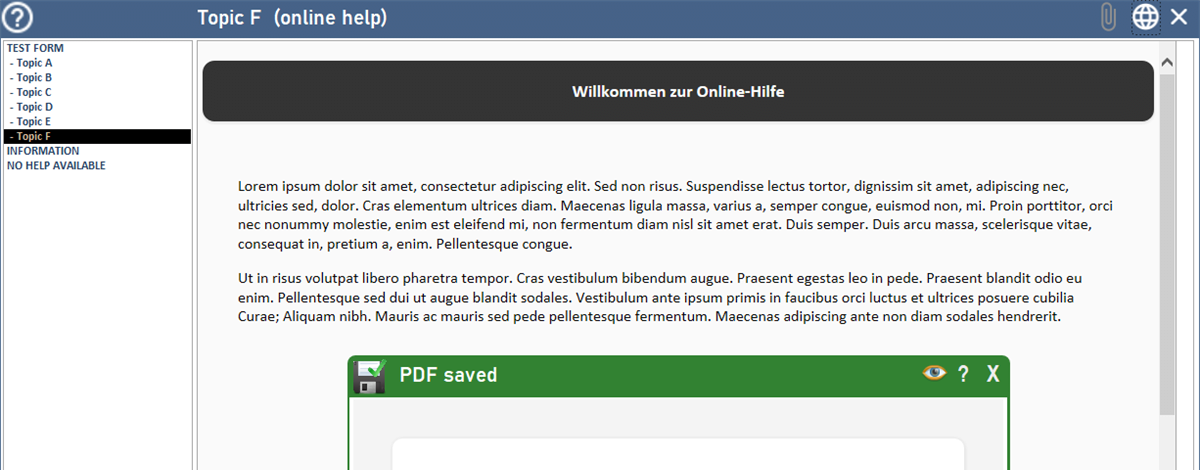
webHelp | A web control that displays web pages when the user clicks a link. |
Icons | Indicate whether attachments or web content are available. |
Calling it – super easy
A single command opens the help form for the respective topic:
' Open help for a specific topic
showHelp("helpname")

' Or form-specific – link the help icon via an event
showHelp(Me.Name)
No stress, no complicated steps – just enter the name of the form, and the help is there.
Administration? A breeze
Everything you customize happens in the help table. Once you have entered help for a form, everything sits in one central location – no constant updates in different places.
Edit directly in the form: open the help form in editable mode and edit the help texts (help_text) directly. Easiest way: write and format your text in MS Word and copy it into the form.
Help text vs. web control: if both a help text and a web link exist, the help text is shown and an icon points to the web link. If there is only a web link, it is displayed directly in the web control.
Conclusion
With a custom help form you offer super-flexible, immediately available and user-friendly help – all kinds of help topics (PDFs, videos, links, rich text) managed centrally in one table. You’ll find the detailed description and all notes directly in the code, well documented as usual.
Download
A central, super easy to manage help form for MS Access – PDFs, web links, videos and rich text in one table, callable via showHelp.


