

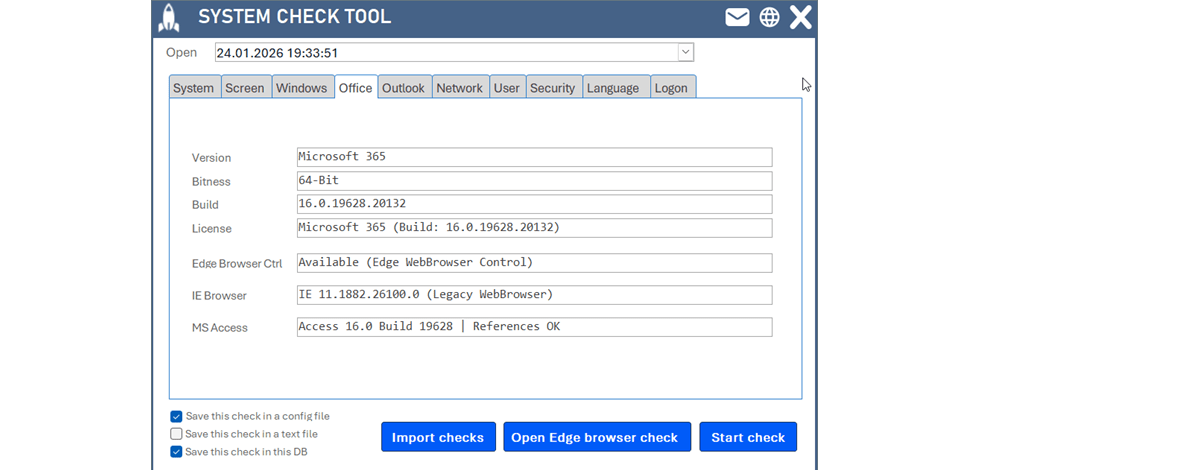
Developers System Check for MS Access – Know the Target Environment
Developing an Access solution without knowing the target environment is like driving with your eyes closed. This 100% VBA tool analyzes the complete system environment – operating system, Office/Access, bitness, monitors, references – saves, exports and imports it (also as YAML) and makes differences visible.
Developing an MS Access solution without knowing the target environment is like driving with your eyes closed. Everything works perfectly on the developer machine – then errors occur on the client’s PC, features behave differently, performance drops, Office versions differ, 32/64-bit incompatibilities appear. This is exactly where the Developers System Check comes in: a 100% VBA tool that analyzes the complete system environment, saves, exports and imports it.
Why environment transparency is critical
Before building or deploying an Access database, you should know the Windows version, the Office/Access version, the bitness, available RAM, monitors/resolutions, loaded references and user rights. These factors directly influence compatibility, stability, performance, feature availability, API declarations and long-term maintainability. Without this information, development becomes guesswork.
What does it analyze?
| Area | Checked | Why it matters |
|---|---|---|
| Operating system | Windows version, build, architecture (32/64) | Many API declarations differ between 32- and 64-bit. |
| Office & Access | Office/Access version, bitness, installation type (e.g. Click-to-Run) | Certain features and libraries are only available in specific versions. |
| System architecture | Processor, installed RAM, system type | Large datasets and complex operations require sufficient resources. |
| Monitor configuration | Number of monitors, resolution, screen dimensions | A layout optimized for 4K may not behave well on Full HD. |
| User & network | Username, computer name, domain, network | Many issues are user- or domain-specific. |
| References & libraries | Loaded VBA references, version details | Missing or incompatible references are among the most common failures. |
Flexible data storage
The collected data can be saved as an Access table, a TXT file or a YAML file – and YAML import is of course also possible, allowing you to aggregate data from multiple systems.
Typical use case
You develop a database for a company with 25 workstations:
- Place the System Check tool on the company network
- Each user runs it once
- The system data is collected automatically
- Export the data as YAML files
- Import all YAML files into a central evaluation database
The result: a complete overview of all environments – mixed versions, a single 32-bit PC or an old Office build stand out immediately.
Troubleshooting made efficient
“It works everywhere — except on this one PC.” With the System Check you directly compare a working environment with a problematic one and quickly find: different bitness, a different Office version, a missing library or a differing screen configuration. The showstopper becomes visible – instead of hours of analysis, phone calls and guessing.
Strategic advantage
Before development even begins, you can decide based on facts: should the environment be standardized? Is a version upgrade necessary? Should certain features be avoided? Is 64-bit required?
Conclusion
The Developers System Check is an analysis tool, a troubleshooting helper, a decision basis and an efficiency booster in one. Especially in heterogeneous client environments, transparency is not a luxury but essential – because most issues are not caused by the code, but by the environment. You’ll find the detailed description directly in the code, well documented as usual.
Download
A 100% VBA tool for MS Access that analyzes the complete system environment (OS, Office/Access, bitness, hardware, monitors, references) and saves it as a table, TXT or YAML – ideal for troubleshooting in heterogeneous client environments.