

Checking if there is an Update available
A single VBA module tells your Access application whether a newer version exists — from a file on the internet, on the server, or directly from the update folder. No references, no API, in 32- and 64-bit Office.
How does the application know there is an update?
You have finished a new version of your Access application. It is sitting on the web server or in the update folder — but the customer is still running the old one. Nobody knows there is something new until someone calls to report a bug you fixed long ago.
The solution is simple: the application checks for itself. At startup or at the press of a button it asks: Is there a newer version than mine? That is exactly what the Version Checker does.
It reports a new version with its date, download address, and release notes. It downloads nothing and replaces no files — what happens with the notification is up to your application.
Three sources, one module
The latest version can come from three sources:
| Source | Function | Typical use |
|---|---|---|
| Version file on the internet | VersionGetLatestWeb | Applications at the customer’s site |
| Version file in a folder | VersionGetLatestIniFile | Company network, one file on the server |
| File names in the update folder | VersionGetLatestFolder | Company network, no version file needed |
Everything is contained in the module modVersionChecker. Import modVersionChecker.bas into your database (in the VBA editor: File → Import File), compile — done. No additional module, no reference, no API declaration.
| Item | Requirement |
|---|---|
| Access | Access 2010 or later, 32 or 64 bit; tested with Microsoft 365 64 bit |
| Windows | Windows 8.1, 10, or 11 (TLS 1.2 is required for HTTPS) |
| References | none (late binding) |
The version file
A single text file describes any number of applications, one section per application in the familiar INI format:
[MyApp]
Version  = 1.2.012
Date     = 13.11.2026
Download = https://www.example.com/downloads/MyApp_1.2.012.zip
Notes    = New export function\nFixed printing error

[SecondApp]
Version  = 2.5
Only Version is required. \n in the notes becomes a line break. The file is named versions.txt — not .ini, because some web hosts do not serve .ini files at all.
Whether you save the file as UTF-8, ANSI, or Unicode does not matter: the Version Checker detects the encoding automatically, and special characters come through correctly. Reading is done entirely in memory — no file is created on the user’s machine, not even a temporary one.
Quick start
Public Sub QuickStart()
Const C_URL As String = _
    "https://www.dieterle-programmierung.de/versioncheck/versions.txt"
Dim sLatest As String

    sLatest = VersionGetLatestWeb(C_URL, "App_VersionCheck_1")

    If Len(sLatest) = 0 Then
        Debug.Print "No version found: " & VersionLastError()
    ElseIf VersionIsNewer(sLatest, "1.0.0") Then
        Debug.Print "New version " & sLatest & " from " & VersionLastDate()
        Debug.Print VersionLastNotes()
    Else
        Debug.Print "Up to date."
    End If
End Sub
The address is a public test file — the code runs immediately. The function returns the version exactly as it appears in the file. Date, download, and notes are retrieved afterwards with VersionLastDate, VersionLastDownload, and VersionLastNotes.
The pitfall with comparing versions
Versions look like text but must not be compared as text. As text, "1.10" is less than "1.9" — the character 1 comes before the character 9. Version 1.10 would therefore never be recognised as an update.
VersionCompare therefore compares segment by segment as a number:
| Comparison | Result |
|---|---|
1.10.0 / 1.9.0 | 1 — the first is newer |
1.2.012 / 1.2.12 | 0 — leading zeros do not count |
1.2 / 1.2.0 | 0 — a missing segment counts as 0 |
1.x / 1.0 | -99 — invalid |
The formats X, X.Y, and X.Y.Z are supported, digits only. For the most common question there is a shortcut: VersionIsNewer(sLatest, sInstalled) is True only if both versions are valid and the first is higher.
Silent at startup, talkative on demand
A check at program startup must not be disruptive. If the machine is offline, no error message should appear — and that is exactly how the Version Checker behaves: expected errors such as no internet connection, an unknown server, or an unregistered app do not trigger a message. The function returns an empty string; the reason is available via VersionLastError. Short timeouts ensure that nobody waits long when there is no connection.
Public Sub UpdateCheckAtStart()
Dim sLatest As String

    sLatest = VersionGetLatestWeb(C_UPDATE_URL, C_APP_NAME)
    If Len(sLatest) = 0 Then Exit Sub          ' offline or not found

    If VersionIsNewer(sLatest, C_APP_VERSION) Then
        MsgBox "Version " & sLatest & " is available." & vbCrLf & vbCrLf & _
               VersionLastNotes() & vbCrLf & vbCrLf & _
               "Download: " & VersionLastDownload(), _
               vbInformation, C_APP_NAME
    End If
End Sub
A “Check for updates” button, on the other hand, should always respond — including with “You are using the latest version” or the text from VersionLastError.
Once a day is enough. For most applications, one check per day is sufficient. Save the date of the last check and only start the check once the form is already displayed — for example via Form_Timer.
In the company network: the update folder as source
If your applications are already stored in an update folder on the server, you do not need a version file at all. VersionGetLatestFolder reads the versions from the file names and returns the highest one:
sLatest = VersionGetLatestFolder("\\SERVER\Updates", "MyApp")
If VersionIsNewer(sLatest, C_APP_VERSION) Then
    Debug.Print "New file: " & VersionLastDownload()    ' full path
End If
Names such as MyApp_1.2.3.accde, MyApp__1.2.accdb, or MyApp-3.accde are recognised. Whoever copies a new version into the folder has published it.
Conventions and limits
| Rule | Meaning |
|---|---|
| App name exact | Case matters — in the section name as well as in the file name |
| Keys flexible | Version, version, VERSION are treated the same; the first entry wins |
| Comments | only at the start of a line with ; or # |
| Separators in file names | _, -, or space, also multiple |
| Digit at end of name | a separator is then mandatory (App_1_2.0.accde) |
| Same version, two extensions | .accde wins over .accdb |
| No auto-update | the Version Checker notifies; it downloads nothing |
Upload first, then update the entry. Only increment the version in versions.txt once the new file is actually on the server — and do not forget to increment the version number inside the new application itself. Otherwise it will report itself as outdated at every startup after the update.
If the app name in the file differs from the name in the call, the Version Checker finds nothing — but it reports in VersionLastError which similar section it did see. Such small things can otherwise cost half an hour of searching.
The demo database
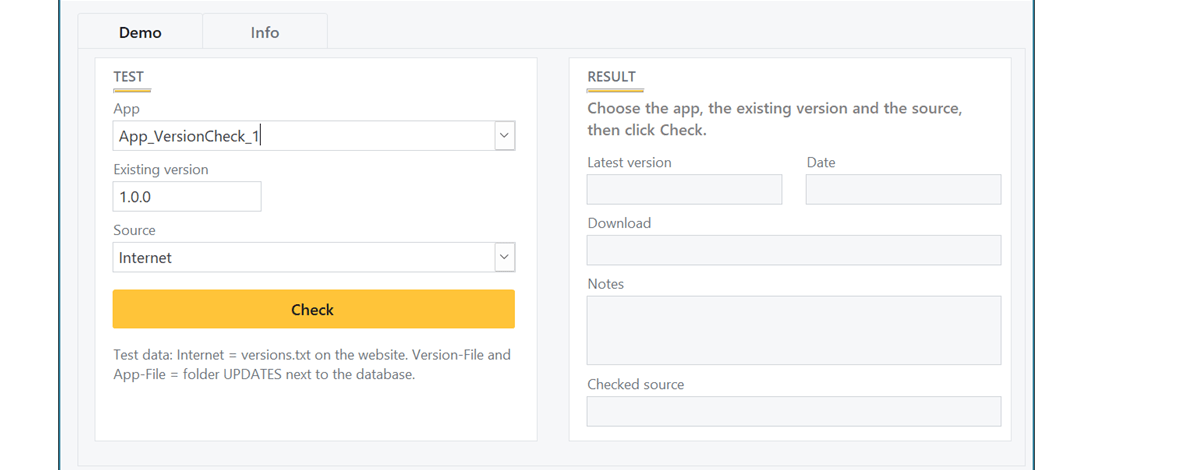
The demo database opens the form frmVersionChecker. Select one of the four test apps, enter an “installed” version, and check against the internet, against the version file in the UPDATES folder, or against the application files in it. Each source returns a different latest version, and the error cases are covered too: an app that is missing on the internet, and files that are intentionally not recognised.
The module also includes a self-test. TEST_modVersionChecker True checks version format, comparison, the version file, application files, and the file on the internet, and writes the result to the Immediate window.
Summary
The Version Checker gives your Access application a simple, reliable answer to the question of whether an update exists: one module, three sources, a correct comparison of version numbers, and a check that stays silent at startup when there is nothing to report. The complete manual included in the download describes all functions, rules, and error messages in detail.